Tesla owner guide · Software update progress
Tesla Software Update Stuck: Download or Installation
Identify the update stage, check the relevant prerequisites and know what information to send when progress stops.

If a Tesla software update appears stuck, first identify whether it is waiting for download, downloading, scheduled or installing. Check the exact message and any completion notification. Keep a downloading vehicle connected to suitable Wi-Fi. During active installation, leave the vehicle parked and do not interrupt the process. Request Tesla service help if progress has stopped or the status remains unclear.
Identify the update stage before taking action
“The update is stuck” can describe several different situations. A download waiting for connectivity needs a different response from software already being installed. Before changing settings, read the wording on the touchscreen and in the app. Record what each shows and when you last saw progress.
Use Controls > Software on the touchscreen to check available vehicle updates. If the app shows a Software Update section, note its status too. The app and the vehicle are separate places to collect observations. If they appear to disagree, report both rather than assuming that one display proves the other is broken.
| Observed stage | Record this | Next focus |
|---|---|---|
| No update offered | The installed version and availability message. | Distinguish rollout timing from a stalled process. |
| Downloading | The displayed progress, connection and time of change. | Check the vehicle’s Wi-Fi connection. |
| Ready or scheduled | The installation prompt and scheduled time. | Check the displayed prerequisites before starting. |
| Installing | The status, start time and any error. | Leave the parked vehicle undisturbed and seek help if stalled. |
| Complete or unsuccessful | The notification and version shown afterward. | Confirm the outcome or send the evidence to Tesla. |
Do not use a remembered icon colour as your only evidence. Photograph or write down the actual notification when it is safe to do so. Interface details can differ with the car and software. The useful distinction is what the vehicle says it is doing, not whether another owner’s screenshot looks identical.
Separate rollout timing from an update failure
Tesla releases updates on a rolling basis, so another vehicle receiving a version first does not establish a fault in yours. Its UAE support page says it does not send updates to individual vehicles on request. A vehicle showing no pending update is different from one that has begun a download and stopped progressing.
If your concern is simply that someone else’s car has a newer version, record your installed version and the availability message. Check that you are looking at vehicle software, rather than a phone app release or an unrelated feature announcement. Comparing different types of updates can create an apparent delay that has no useful connection to your vehicle.
The Standard and Advanced preferences concern updates ready for your vehicle. Selecting Advanced is not a repair for an unsuccessful installation and does not mean a specific release must arrive immediately. Avoid repeatedly switching preferences to try to force a version seen online. Keep the availability question separate from evidence of a process that is already failing.
When seeking help, explain which situation applies. “No update is offered” tells the receiving team something different from “the offered download has remained at the same displayed progress.” Include the latter’s timing and connection details if relevant. You do not need to prove that the release exists for every other vehicle before reporting your own observed problem.

Check vehicle connectivity during the download phase
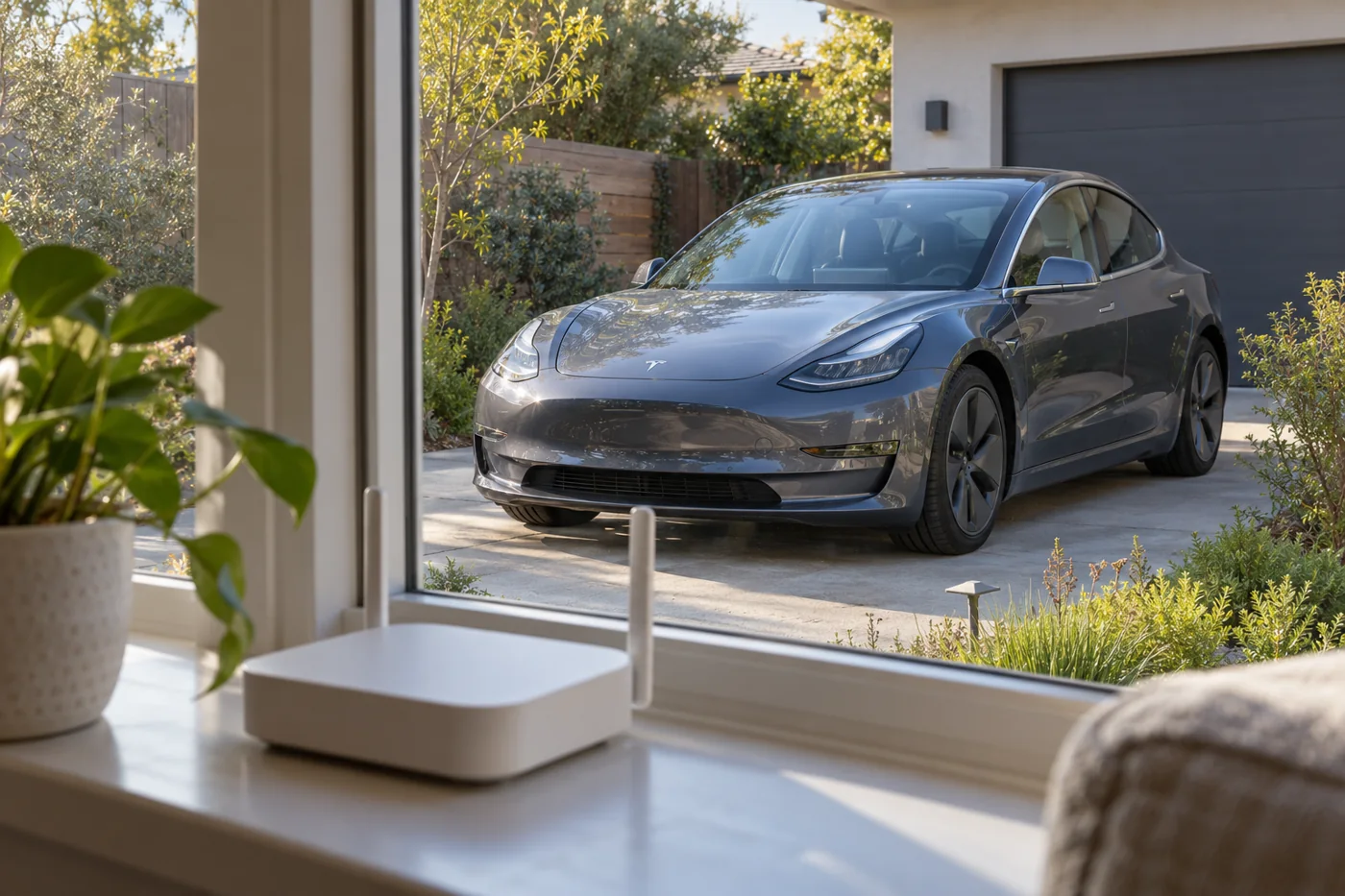
Confirm the car’s connection, not only your phone’s. A phone using mobile data can display the app while the vehicle has weak or unavailable Wi-Fi. On the current Model 3, Tesla’s manual places the connection menu under Controls > Wi-Fi. Check the instructions for your actual vehicle if its menus differ.
Look for the selected network and its connection indication. Note whether the same network remains connected while you observe the download. A visible network name in a list of available networks is not the same as a confirmed connection. Record any connection error exactly, without sharing the network password in a service message.
Tesla’s Wi-Fi guidance recommends checking signal strength, improving access-point coverage or trying another network for connection problems. Its Model 3 manual says captive networks requiring a web-portal login are not supported. If the download is waiting and installation has not started, consider a suitable trusted connection that the car can actually use.
Keep a simple record of a connection change. Write down the previous network, the replacement network and whether the displayed download progress changed afterward. Do one sensible check at a time so you can tell what happened. Changing several things at once leaves less useful information if the problem continues.
If you need to reposition the car for better signal, first confirm that it is still downloading and has not started installation. Do not move an installing vehicle to pursue better Wi-Fi. If you cannot establish the stage, leave it parked and ask Tesla for instructions. The connection check should never override an active-installation warning.
Check displayed prerequisites before scheduling the installation
Before starting, choose a parked location and a time when you will not need the vehicle. Read the prompt rather than accepting a countdown without checking the conditions. Make sure nobody depends on the cabin remaining available during the process. Arrange your journey first so an appointment or school pickup does not become pressure to interrupt installation.
The current Model 3 manual says Keep Climate On, Pet Mode and Camp Mode prevent installation. It also describes specific conditions for automatic overnight installation, including parking at the saved Home location and more than 10% energy remaining. Those automatic-mode conditions are not a universal battery threshold for every Tesla installation. Follow your vehicle’s actual prompt and manual.
If the car presents a prerequisite or says it cannot begin, record the wording and address only the condition it identifies. Do not invent a fault because a scheduled time passed without installation. Establish whether it was still scheduled, waiting for a condition or reporting an unsuccessful attempt.
If you do not recognize a requirement, ask Tesla what it means for that vehicle. Include the message rather than paraphrasing it as “battery problem” or “update blocked.” This gives the service team a useful starting point and avoids turning an update-progress question into an unsupported diagnosis of the charging system or another component.
Leave an active installation parked and undisturbed
Tesla warns against using the vehicle while software is installing because functions, including some safety systems and door or window operation, may be limited. You cannot drive during installation. If plugged in, charging pauses until installation finishes. A charging pause at this stage does not, by itself, establish a separate charging fault.
Do not disconnect a battery, remove fuses, use Service Mode to force a reinstall or attempt unsupported firmware changes. Do not use a routine screen restart as an instruction to interrupt an active installation. If the vehicle remains at an installation status and you are unsure what is happening, contact Tesla with the timing and message.
A progress percentage is an observation, not a diagnosis. An unchanged number does not tell you which internal task is running or whether a particular component has failed. Record the last observed change and the next status you see. Avoid building a sequence of guessed fixes around a percentage mentioned in a forum.
Keep children, pets and anyone needing cabin climate away from a planned installation situation. If there is an immediate problem involving a person, treat that as an emergency rather than waiting for an update troubleshooting step. For the update itself, preserve the displayed information and use Tesla’s assistance route instead of experimenting with vehicle power.
Follow current Tesla guidance for stalled progress
Tesla’s UAE support guidance says to maintain Wi-Fi and schedule service if an update is making no progress. For an apparently unsuccessful update, it first asks owners to verify status. If more than three hours have passed since starting and the app has no Software Update Complete notification, its troubleshooting guidance describes a touchscreen reboot, then service if unsuccessful.
That is conditional guidance, not a universal instruction to restart whenever a percentage pauses. Establish whether installation is still active before applying a restart procedure. If it is active or you cannot determine the stage, ask Tesla for direction and leave the vehicle parked. Do not treat the three-hour condition as permission to disconnect power or stop an ongoing installation.
For a confirmed unsuccessful attempt where no active installation is underway, use Tesla’s current restart instructions for your vehicle. The Model 3 touchscreen instructions say to be in Park, hold both steering-wheel scroll buttons until the screen goes black, then wait for it to restart. This restarts the touchscreen, not every vehicle system. Do not repeat it continually if the update still fails.
The current Model 3 update manual also says that a message reporting an unsuccessful completion may require waiting for the next update deployment. Send that exact message to Tesla if you are uncertain or the vehicle is unresponsive. A stalled installation, a completed failure notification and a release awaiting deployment should not all receive the same improvised fix.
Send a clear update history with your request
Use Service in the Tesla app to request help and describe the update concern. Attach a relevant photograph or screenshot where the request permits it. The most useful evidence is a short sequence showing what began, what changed and what is displayed now. You do not need to supply a guessed firmware fault to make the request worthwhile.
- Vehicle: Include the model and identifying information requested by Tesla.
- Versions: Record the installed version and offered version if visible.
- Stage: State downloading, ready, scheduled, installing or unsuccessful.
- Timing: Give the start time and last observed progress.
- Messages: Copy the notification or error wording and any alert code.
- Connection: Describe the vehicle’s Wi-Fi status and relevant changes.
- Actions: List what you actually tried and what happened afterward.
- Availability: Explain whether the car remains unusable or the status is unclear.
For example, a useful report could say that the offered update began downloading in the evening, the car remained connected to the home network, and the displayed progress has not changed since a recorded time. If you do not know the time precisely, say it is approximate. Avoid filling gaps with invented detail.
Ask the service team what to do next and whether the vehicle should remain where it is. If an appointment exists, keep further observations in that request rather than opening unrelated requests for the same issue. Retain the replies so any subsequent action follows the instructions given for your vehicle and its current state.
Confirm completion before investigating any remaining symptoms
Check for the completion notification and the software version displayed afterward. Read the release notes for the installed version. A feature behaving differently after an update may need explanation, but a changed interface alone does not establish that installation failed. Keep the installation outcome separate from a new functional complaint.
If the update is confirmed complete but the display remains frozen or black, record that as a display symptom. Do not repeatedly start update troubleshooting solely because the two events occurred close together. Similarly, capture a camera or driver-assistance alert exactly and follow its instructions rather than assuming that another update will resolve it.
Describe the order of events in a follow-up request. Say whether the symptom existed before the update, appeared during it or was first noticed after completion. Include what still works and what does not. Timing is useful evidence, but it does not establish whether the cause is software, connectivity or hardware.
If charging does not resume or the car shows another warning after installation, note both statuses and request guidance. Do not treat every later issue as a harmless update quirk. Follow vehicle warnings, and seek assistance if the car cannot be used safely. Update completion is not an inspection clearing every other concern.
Answer common questions without forcing another update
Does a newer version on another Tesla mean mine is stuck?
No. First check whether your vehicle has an offered update or an active process. Rollout timing and a download that has stopped progressing are different situations.
Can I cancel installation because I need the car?
Tesla says installation cannot be cancelled once it starts. Plan around it beforehand, leave the car parked and ask Tesla for help if progress has stopped.
Can an independent workshop roll the software back?
Do not choose rollback or unsupported firmware changes as an update fix. Tesla states that reverting to a previous version is not possible. Use its current support route for an unsuccessful update.
Should I wait indefinitely when the installation status is unclear?
No. Record the timing and message and request Tesla’s guidance. Leave an active installation undisturbed while you seek help rather than trying increasingly invasive resets.
Is a screen restart the same as restarting the whole car?
No. Tesla’s touchscreen instructions distinguish the display restart from restarting other vehicle components. It is not a general repair or a way to override installation restrictions.
Official references for updates and connection checks
- Tesla UAE software updates and stalled-update guidance
- Tesla Model 3 UAE software update instructions
- Tesla Model 3 UAE Wi-Fi instructions
- Tesla Model 3 UAE touchscreen restart instructions
- Tesla UAE service requests and appointments
Official guidance checked on 30 September 2026. Use the documents and instructions applicable to your vehicle.