Tesla ownership · Touchscreen response
Tesla Touchscreen Frozen or Black
Stop safely, use the matching restart and record the symptom before choosing a repair.
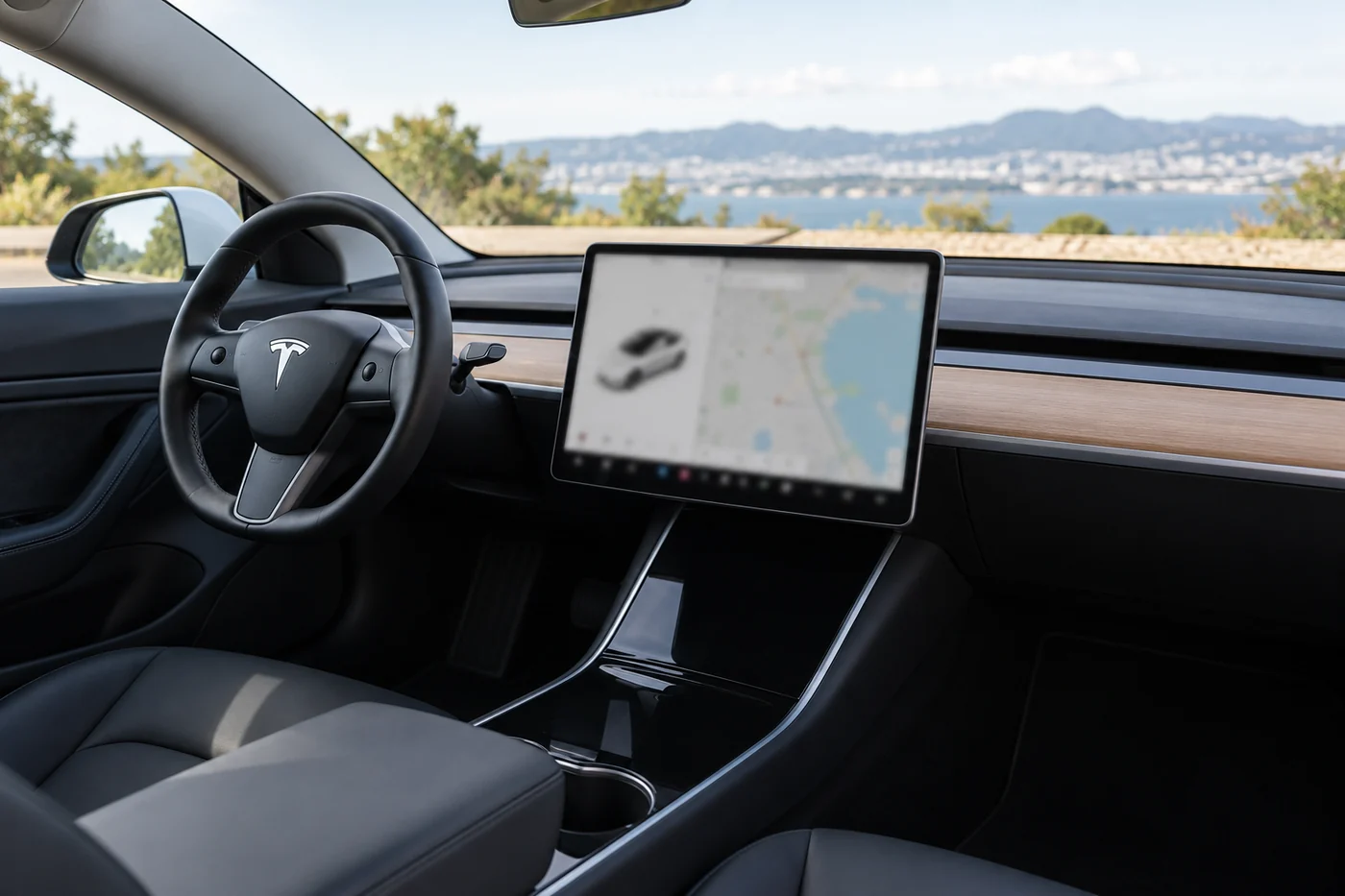
If your Tesla touchscreen freezes or goes black while driving, keep your attention on the road and stop safely before attempting a restart. Do not hold the restart buttons while moving. Once stopped and in Park, use the procedure for your model and build. A recovered screen is useful evidence, but it does not prove that a recurring fault is repaired.
The first distinction is between a screen that has lost all response, touch input that has stopped working and one online feature that is not loading. Those observations can lead to different checks. You do not need to decide which component failed before asking for help.
Stop safely before troubleshooting
Do not work through menus, photograph the screen or attempt repeated restarts while moving. Bring the car to a safe stopping place as the circumstances allow. If essential driving information, visibility or controls are unavailable, do not continue the journey simply because the car can still move.
Tesla warns that the car-status display, safety warnings and reversing-camera view are unavailable during a touchscreen restart. Plan to remain stationary throughout it. If the vehicle is exposed to traffic or cannot be safely secured, seek assistance instead of experimenting with buttons.
Consider passengers as well as the vehicle. In UAE heat, a parked troubleshooting sequence is not a reason to remain in an overheating cabin. Arrange a safe, protected waiting place or appropriate assistance if cooling is unavailable. For an immediate danger, contact emergency services first.
A black screen does not establish that every vehicle system has stopped working. It also does not establish that the car is safe to drive. Describe which functions remain available and let the assistance provider account for the actual model and situation. Do not try a guessed gear-selection method.
Describe what stopped responding
| What you notice | What to record |
|---|---|
| Picture frozen | Whether the whole screen has stopped updating or only one area or app is stuck. |
| Picture visible, touch ineffective | Whether touch works anywhere, any unintended selections and whether an accessory protector is fitted. |
| Screen black | When it happened, whether it returns, and which other displays or controls remain available. |
| Lines, flicker or discolouration | A parked photo, visible damage and whether image changes are constant or intermittent. |
| One online feature fails | Whether ordinary vehicle menus and other functions still respond. |
If ordinary menus respond but music, online information or the phone app will not connect, check how the car is connected before treating it as a whole-screen freeze. Note whether cellular, Wi-Fi or Bluetooth functions are affected. A SIM change is not a general cure for an unresponsive display.
A deliberately enabled display mode can also change what you see. On the applicable Model 3, Screen Clean Mode darkens the touchscreen and temporarily disables touch. Use its matching exit instructions if that is what was enabled. Do not label every dark display a hardware failure.
Tesla’s current Model 3 and Model Y manuals warn that screen protectors can cause unintended input, delayed response or unresponsiveness. Mention an existing protector when reporting the symptom. Do not add one as a repair or dismantle the display to investigate its touch-input layer.
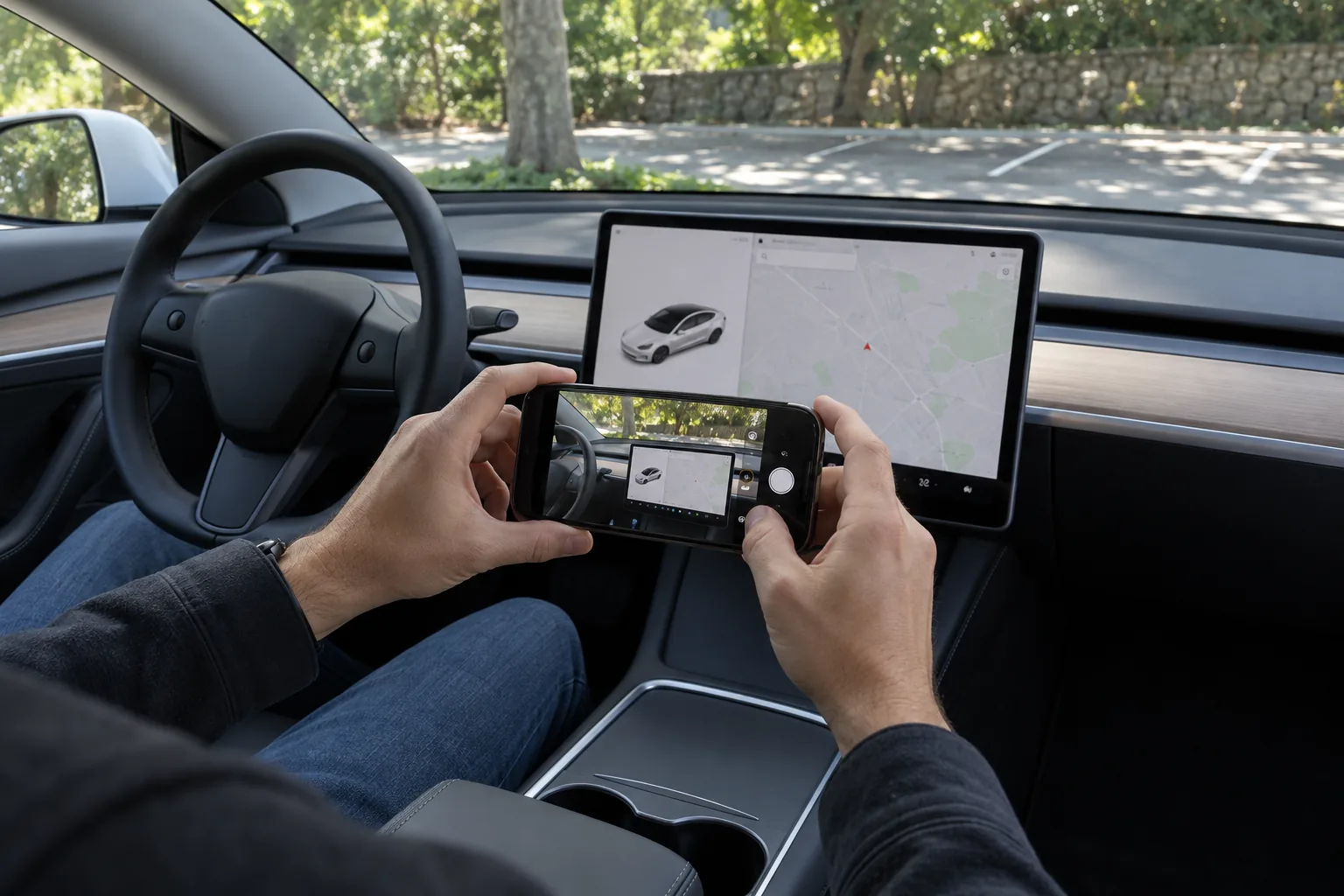
Restart the touchscreen while parked
The following process is described in the linked current UAE Model 3 and Model Y manuals. Check that it matches your vehicle. For another build, market or model, use its own manual rather than assuming all screen and instrument-panel procedures are interchangeable.
- Stop in a safe place and select Park.
- Hold both steering-wheel scroll buttons until the touchscreen goes black.
- Allow the screen to restart. Tesla gives approximately 30 seconds for the restart, but if it remains unresponsive after a few minutes, follow the next applicable guidance or contact assistance.
This restarts the touchscreen. It does not power-cycle the vehicle or restart every other component. Pressing the brake pedal while holding the scroll buttons is not required by the Model 3 procedure.
After it returns, check the response and the functions that were missing while still parked. Record any remaining alert. If the screen repeatedly freezes, cannot recover or leaves essential functions unavailable, arrange assessment rather than continuing a cycle of restarts.
Power cycling is a separate step
Tesla’s Model 3 manual says to try a touchscreen restart before power cycling. A power cycle requires a usable touchscreen for its menu command. If the screen is still completely unresponsive, that menu is unavailable. Contact assistance rather than improvising a low-voltage disconnection.
For a Model 3 covered by the linked procedure, and only while safely parked with passengers’ needs addressed:
- Select Park.
- On the touchscreen, choose Controls → Safety → Power Off.
- Wait at least two minutes without interacting with the car. Do not open doors, touch the brake pedal or touch the screen.
- After that wait, press the brake pedal or open a door to wake the vehicle.
Use the matching instructions for another vehicle. This procedure is not a factory reset, a firmware downgrade or proof that a failed component has been repaired. Avoid disconnecting batteries, pulling fuses or removing trim as an owner troubleshooting shortcut.
If waiting without cabin cooling would create a heat risk, stop the troubleshooting attempt and seek appropriate help. Passenger safety takes priority over completing a restart sequence.
Match the vehicle and hardware
Record the model, build year, original market and previous screen or infotainment work. Identify the affected display, including whether the concern is with the centre screen, a separate instrument display or a rear screen where fitted. A procedure for one display is not automatically a procedure for another.
The media control unit, often shortened to MCU, is the infotainment computer. It is not the same thing as the visible touchscreen. A frozen picture, lost touch response or flicker does not alone establish whether the display, an electrical connection, its power supply or the computer needs repair.
Older Model S and Model X vehicles have a specific hardware issue worth checking. Tesla’s 8GB embedded MultiMediaCard, or eMMC, recall concerns vehicles built before March 2018 with the specified memory hardware. Its guidance describes persistent blank displays and storage-degradation alerts. This does not make every screen freeze an eMMC failure or extend that recall to Model 3 and Model Y.
Ask Tesla to check the VIN and completed repair history, especially for an imported vehicle. The recall’s memory replacement and an Infotainment Upgrade are separate work. A replacement memory component is not automatically a complete computer upgrade. Confirm the applicable remedy before authorising paid work.
Power checks also need the fitted vehicle’s specification. Do not assume every Tesla uses a conventional 12-volt lead-acid battery. A technician should establish the correct low-voltage system before testing its supply or selecting parts. A dark screen by itself does not diagnose that battery.
Record recurring faults without guessing
Keep the software version and timing as evidence. If the problem began after an update, record that sequence accurately. Timing alone does not prove a firmware defect, and a list of forum complaints is not vehicle-specific evidence that a particular release caused the freeze.
Collect these details while parked, without deliberately recreating a failure on the road:
- Whether the screen is frozen, black, ignoring touch or affecting only one feature.
- The approximate time, frequency and whether the vehicle had just woken, updated or been serviced.
- The installed software version, if it can be read safely.
- The full alert and any parked photo or brief video of the actual symptom.
- Whether the applicable restart restored operation and how soon the problem returned.
- Any fitted protector, connected accessories or recent infotainment changes.
Do not delete profiles, format storage or downgrade firmware on the assumption that cached data caused the problem. Those actions can remove useful information without establishing a cause. Tell the service provider about accessories and changes so it can choose a relevant check.
Persistent loss of response, recurring blackouts, unintended selections or visible display damage warrants assessment. The useful question is what testing establishes, not how many times a reboot has temporarily restored the picture.

Agree the assessment before replacement
Ask the provider to distinguish display output, touch input, power supply, connections and the infotainment computer as appropriate to the vehicle. If only an online feature fails, account and connection checks may be more relevant than a screen replacement. If the fault is intermittent, provide the recorded pattern rather than expecting one brief parked test to reproduce it.
Request an explanation of the finding, the compatible component and any required installation or software steps. Do not approve a computer upgrade merely because it is offered as a universal cure. A quoted repair should address the established problem.
Check manufacturer coverage before authorising paid work. Tesla’s UAE guidance says warranty-covered service must be carried out at a Tesla Service Center. Non-warranty work can be assessed separately. Ask Tesla about the vehicle’s actual eligibility and ask an independent repairer about its own written parts and labour terms.
If transport is required, tell the operator which screen and controls respond, what key is available and whether the car can be safely accessed. Loading and transport must follow the instructions for that exact vehicle.
Common touchscreen questions
Can I restart the touchscreen while driving?
No. Tesla’s instructions require the vehicle to be stopped and in Park. Status information, warnings and the camera view are unavailable during the restart.
Does a black screen mean the whole car has lost power?
Not necessarily. Report what remains available and do not assume either that every system has failed or that the vehicle is safe to keep driving.
Does a successful restart rule out a hardware fault?
No. It records a response to that step. A recurring problem still needs assessment, and the response does not identify a failed part.
Does every older Tesla qualify for the eMMC recall?
No. The specified model, build period, fitted hardware and prior repairs matter. Have Tesla check the actual VIN and current eligibility before relying on a recall remedy.
Official Tesla references
- Model 3 UAE touchscreen and parked restart
- Model Y UAE touchscreen and parked restart
- Model 3 UAE power-cycling procedure
- Tesla 8GB eMMC recall applicability and hardware distinction
- Tesla UAE warranty-service guidance
The restart examples use the linked current Model 3 and Model Y manuals. For another generation or market, follow its own manual. Confirm recall and coverage for the actual vehicle with Tesla.
Updated 30 September 2026 by Tesla Repair Dubai.
Keep the car safely stopped for restart attempts. If the fault persists or returns, provide a clear record and arrange the next check.